

Visualize javascript's array.filter() by building product filter buttons

Hi there,
I am Nathanael the bug dodger(I try my best)
I am a JavaScript developer who aims to simplify Web development for beginners by utilizing a hands-on approach to learning...
My approach stems from the struggle I faced myself while starting out in web development and I want to make sure the road is smoother for any one coming behind me
JavaScript's array.filter method is an array method you've likely heard of, read about or even used while following a few tutorials or solving javascript algorithm questions. It's a very important array method you'll use a lot.
The array.filter method...
Takes an array
Takes a filter condition
Loops over the array
Checks for array elements that satisfy the filter condition and passes those elements into a new array
Leaves the original array intact
If this is your first time reading about the filter method then check MDN's detailed explanation or this equally explanatory article on FreeCodeCamp.
If this is your first time checking out the Visualizing JavaScript Series then check out Article Zero of this series.
What we'll be building
You'll visualize the array.filter method by making product category filter buttons for product list of some yummy cakes.
The product section will have buttons that filter items shown on the screen based on their categories. This is a common feature on ecommerce websites and you'll learn how to make a simplified version of it using JavaScript
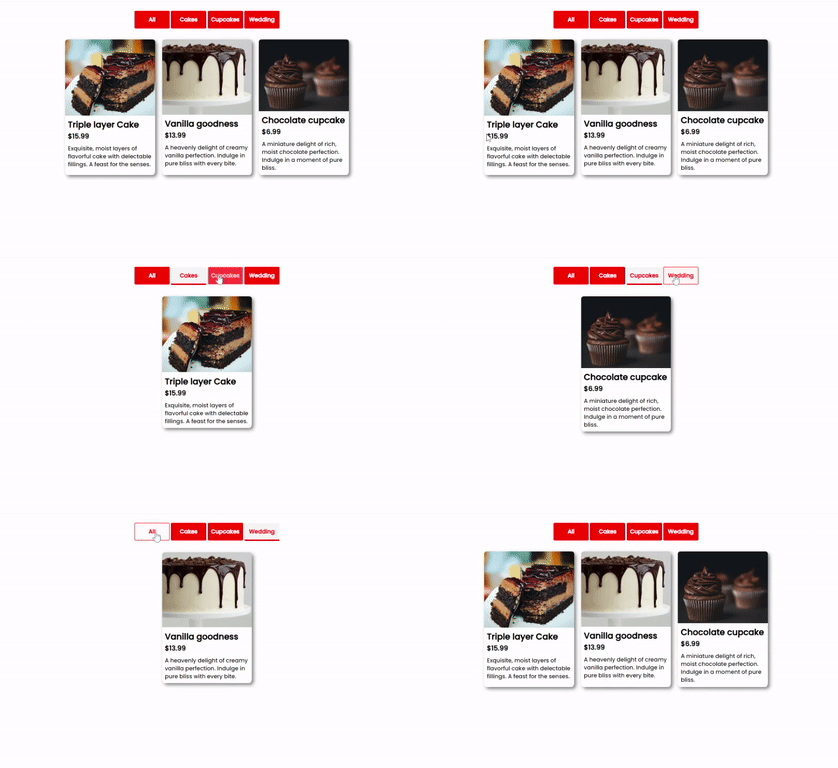
You've read a brief explanation of the array.filter() method and you've seen what you'll be making, now, let's get started.
Creating the filter Buttons
I'll start the project by copying the HTML from the array.map article but I'll make a few modifications to the code.
<!DOCTYPE html>
<html lang="en">
  <head>
    <meta charset="UTF-8" />
    <meta http-equiv="X-UA-Compatible" content="IE=edge" />
    <meta name="viewport" content="width=device-width, initial-scale=1.0" />
    <title>Document</title>
    <link rel="stylesheet" href="style.css" />
  </head>
  <body>
    <div class="btn-container">
      <button class="filter-all" type="button" data-id="all">All</button>
      <button class="filter-btn" type="button" data-id="cakes">Cakes</button>
      <button class="filter-btn" type="button" data-id="cup-cakes">
        Cupcakes
      </button>
      <button class="filter-btn" type="button" data-id="wedding">
        Wedding
      </button>
    </div>
    <div class="section-center">
      <article>
        <img src="/assets/Doughnuts.jpg" alt="" />
        <div class="item-info">
          <div class="item-div">
            <h2 class="item">buttermilk pancakes</h2>
            <h4 class="item-price">$15</h4>
          </div>
          <p class="item-desc">
            Lorem ipsum dolor sit amet consectetur, adipisicing elit.
            Reprehenderit at tenetur ratione eaque.
          </p>
        </div>
      </article>
    </div>

    <script src="app.js"></script>
  </body>
</html>
The changes made to the original code are:
Created a
divwithclassofbtn-containerfor the filter buttons.Added four buttons to the container and gave them classes of
filter-btnandfilter-all.Added a
data-idto eachbuttonto serve as a unique identifier,data-idallows HTML elements to be used in unique ways. You'll see a bit more of this later in the article.
Styling the filter Buttons
You can just copy and paste the CSS to save some time
@import url('https://fonts.googleapis.com/css2?family=Poppins:ital,wght@0,300;0,500;1,200&display=swap');

*{
    margin: 0;
    padding: 0;
    text-decoration: none;
    font-family: Poppins;
}
body{
    display: flex;
    flex-direction: column;
    justify-content: center;
    align-items:center ;
    padding-top: 2em;
}
button{
    cursor: pointer;
    background-color: red;
    color: white;
    height: 50px;
    width: 100px;
    border: none;
    padding: 2px;
    font-weight: bold;
    font-size: 1em;
    border-radius: 5%;
}
button:hover{
    background-color: white;
    border: 2px solid red;
    color: red;
    transition: .7s ease;
}
button:focus{
    background-color: whitesmoke;
    border-bottom: 4px solid red;
    color: red;
}
.section-center{
    padding: 2em;
    display: flex;
    justify-content: center;
    gap: 20px;
    flex-wrap: wrap;
}
h4{
    font-size: 1.2em;
}
article{
    display: flex;
    flex-direction: column;
    width: 16em;
    box-shadow: 5px 5px 10px 0.1px grey;
    margin-bottom: 10px;
    border-radius: 3%;
}
img{
    max-width: 100%;
    border-top-left-radius: 3%;
    border-top-right-radius: 3%;
}
.item-info{
    padding: .5rem;
    display: flex;
    flex-direction: column;
    gap: 10px;
}
Making the filter buttons Functional
We'll use the javascript code from the array.map article since it contains the array of products and the displayMenuItems function we need to map over the array and display the products on the screen.
I've edited the product description in the menu array and changed it from the lorem placeholder text to something more readable.
const menu = [
    {
      id: 1,
      title: "Triple layer Cake",
      price: "$15.99",
      img: "https://unsplash.com/photos/kPxsqUGneXQ",
      desc: "Exquisite, moist layers of flavorful cake with delectable fillings. A feast for the senses.",
    },
    {
      id: 2,
      title: "Vanilla goodness",
      price: "$13.99",
      img: "https://unsplash.com/photos/vdx5hPQhXFk",
      desc: "A heavenly delight of creamy vanilla perfection. Indulge in pure bliss with every bite.",
    },
    {
      id: 3,
      title: "Chocolate cupcake",
      price: "$6.99",
      img: "https://unsplash.com/photos/6SHd7Q-l1UQ",
      desc: "A miniature delight of rich, moist chocolate perfection. Indulge in a moment of pure bliss.",
    }]

   const section = document.querySelector('.section-center')

    function displayMenuItems(){
        let displayMenu = menu.map(function(item){
            return `
            <article>
           <img src=${item.img} alt="">
           <div class="item-info">
               <div class="item-div">
                  <h2 class="item">${item.title}</h2>
                  <h4 class="item-price">${item.price}</h4>
               </div>
               <p class="item-desc">${item.desc}</p>
               <button class>${item.btn}</button>
               </div>
         </article>
            `
        })
        section.innerHTML = displayMenu
    }

    displayMenuItems()
To make the buttons functional, you need to select the filter buttons using the querySelectorAll, using the querySelectorAll method on classes creates a NodeList for those classes (you can think of a NodeList as a mini array grouping the classes) this NodeList is then assigned to a variable named filterButtons
const filterButtons = document.querySelectorAll(".filter-btn")
The button classes are in a NodeList and this list can be looped over using the forEach array method shown below. The forEach method in the code snippet below goes over the filterButtons list containing the filter buttons, takes each button on the list and runs a function on that button.
filterButtons.forEach(btn => {
  // rest of the code here
})
filterButtons.forEach(btn => {
  btn.addEventListener("click", (e) => {
    //the rest of the code
}
The code snippet above gives each button an event listener that takes an event type of click, giving something an event listener of click means when it is 'clicked' a function should run.
(e) => {
    const category = e.currentTarget.dataset.id
    const menuCategory = menu.filter(item => {if(item.category === category){
      return item
    }})
    displayMenuItems(menuCategory);
  })
The code snippet above does several things but we'll break it into chunks.
const category = e.currentTarget.dataset.idThe function takes an event
eas an argument ande.currentTarget.dataset.idchecks the fordata-idof the current button being clicked and assigns thedata-idto avariablenamedcategoryconst menuCategory = menu.filter(item => { if(item.category === category) { return item }})The
menu.filtermethod goes over themenuarray and checks thecategoryof eachitemof themenuarray using theifstatement.The
ifstatement checks if thecategoryof anitemin themenuarray matches thecategoryof the button clicked (remember we added a click listener to each button), when the correct item is found, themenu.filterreturns the item into a new array calledmenuCategory.
You can remove the if statement from the code above and rewrite it as
    const menuCategory = menu.filter(item => {
          return item.category === category
        })
The code still does the same thing but without the need for the if statement
displayMenuItems(menuCategory)Finally, we set the array to be mapped over by the
displayMenuItemsfunction to themenuCategoryarray instead of themenuarray.
Making the all button Functional
You might remember there's a button with a data-id of all, the all button is meant to display all the products in the array, the easiest way to do this is to pass the menu array back into the displayMenuItems function.
You can do this in just two steps.
Select the
allbuttonusing aquerySelectorconst filterAll = document.querySelector(".filter-all")Add a
clickevent listener that runs a function, the function passes themenuarray(the original array) back into thedisplayMenuItemsfunction that displays all the products.filterAll.addEventListener("click", () => { displayMenuItems(menu) })This resets the page to its original state with all the products displayed.
You can see the complete code below.
 const section = document.querySelector(".section-center");
 const filterButtons = document.querySelectorAll(".filter-btn")
 const filterAll = document.querySelector(".filter-all")

 const menu = [
   {
     id: 1,
     title: "Triple layer Cake",
     category: "cakes",
     price: "$15.99",
     img: "https://unsplash.com/photos/kPxsqUGneXQ",
     desc: "Exquisite, moist layers of flavorful cake with delectable fillings. A feast for the senses."
   },
   {
     id: 2,
     title: "Vanilla goodness",
     category: "wedding",
     price: "$13.99",
     img: "https://unsplash.com/photos/vdx5hPQhXFk",
     desc: "A heavenly delight of creamy vanilla perfection. Indulge in pure bliss with every bite."
   },
   {
     id: 3,
     title: "Chocolate cupcake",
     category: "cup-cakes",
     price: "$6.99",
     img: "https://unsplash.com/photos/6SHd7Q-l1UQ",
     desc: "A miniature delight of rich, moist chocolate perfection. Indulge in a moment of pure bliss."
   },
 ];

 filterButtons.forEach(btn => {
   btn.addEventListener("click", (e) => {
     const category = e.currentTarget.dataset.id
     const menuCategory = menu.filter(item => {
       return item.category === category
     })
     displayMenuItems(menuCategory);
   })
 })

 filterAll.addEventListener("click", () => {
   displayMenuItems(menu)
 })

 function displayMenuItems(menuItems) {
   let displayMenu = menuItems.map(function (item) {
     return `
       <article data-id="${item.id}">
         <img src=${item.img} alt="">
         <div class="item-info">
           <div class="item-div">
             <h2 class="item">${item.title}</h2>
             <h4 class="item-price">${item.price}</h4>
           </div>
           <p class="item-desc">${item.desc}</p>
         </div>
       </article>
     `;
   });

   section.innerHTML = displayMenu.join('');
 }

 displayMenuItems(menu);
Conclusion
You have visualized the array.filter method by building functional product category filter buttons for a product list, you've used some javascript syntax like the forEach array method, addEventListener, and the if statement to build the project.
You have also briefly heard of a NodeList, you can read more about NodeList on MDN
Please practice a bit more and try rebuilding the entire project from scratch so you can get a better grip on it. If you have any questions, comments or suggestions, feel free to drop them in the comments or reach out to me on Twitter where I'm more active. See you in the next article


